How to add badges or small icons under the product title or price
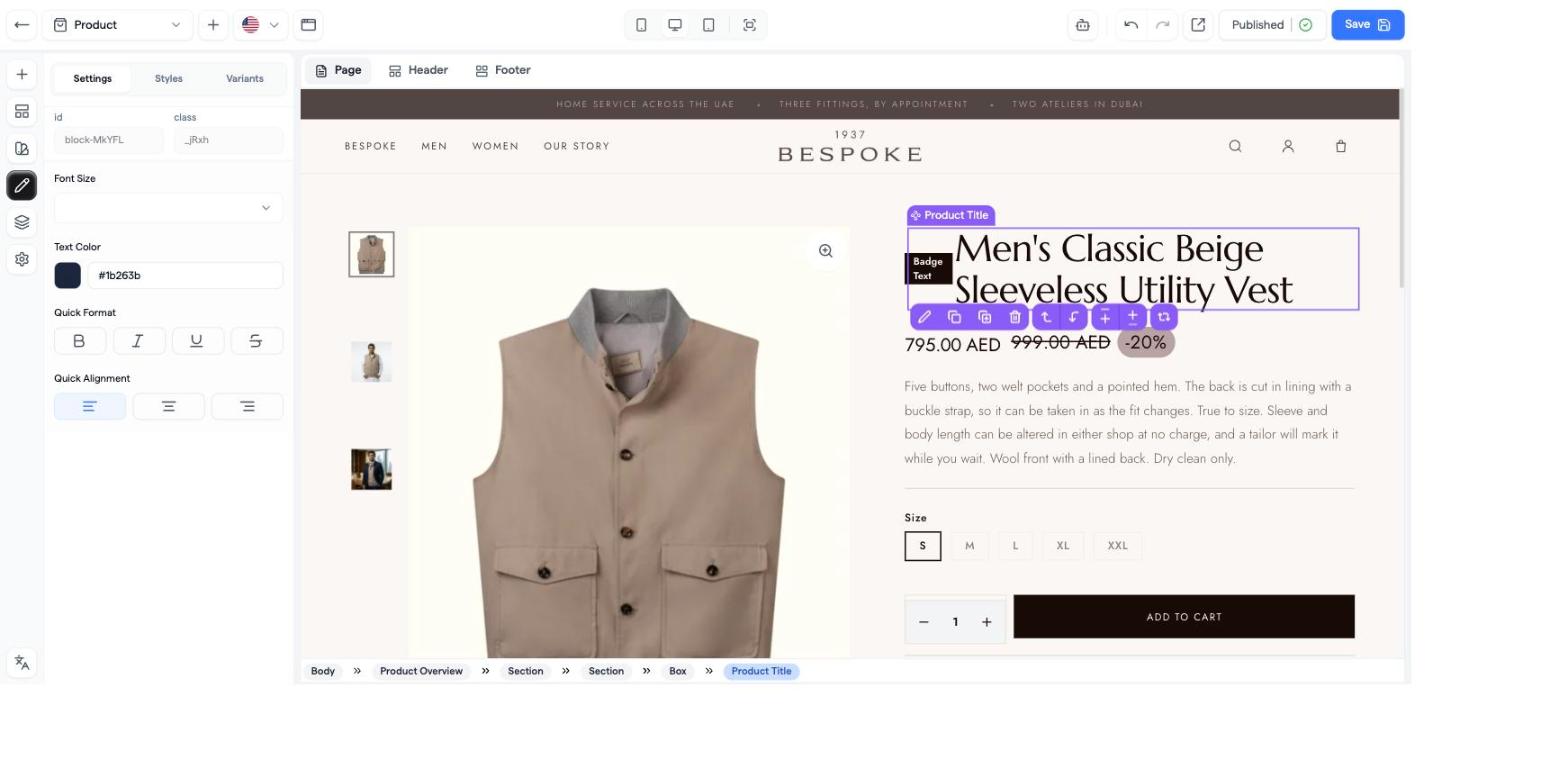
In the theme editor, insert a Badge block (or an Icon or Image) between the product title and the price on the Product page. The badge belongs to the theme, so it shows the same text on every product page; per-product labels are not available.
Steps
- Open Online Store → Theme Settings, click the page selector (Select Page) and choose Product.
- Click the product title on the canvas, then press + in the floating toolbar (or click the thin drop zone between the title and the price).
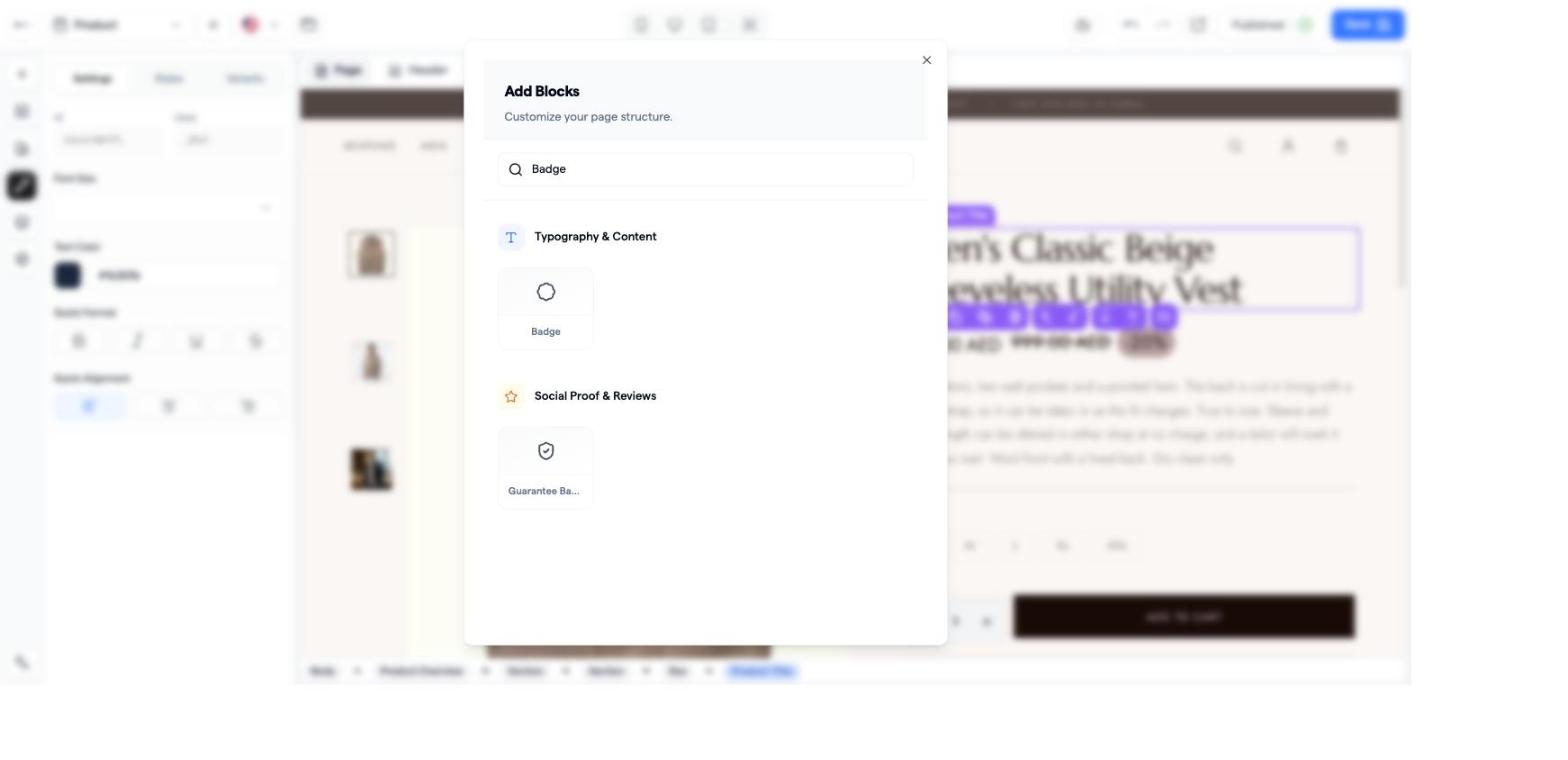
- In the Add block window search Badge (category "Typography & Content") and add it.
- In Settings, type the text in Content (e.g. "Free delivery") and pick a Button Variant (Default, Secondary, Destructive, Outline). Use Styles for colours, radius and padding.
- Move it with the toolbar arrows if needed, then click Save.
Alternatives in the same spot
- Icon block: Font Awesome icons (truck, shield, lock…) with Icon color and Icon size.
- Image block: an uploaded PNG/SVG badge (up to 15 MB); the default product page already has one under the Add-to-cart button.
- Automatic pills: Product Discount Percentage, Product Stock Status, Custom Stock, Live Visitors, Delivery Timer, Payment Methods.
- Country flags: the icon picker has none — upload a flag image or type a flag emoji into a Heading, Paragraph or Badge.
Badges on product cards (home page)
Select a Product List block → Settings → Badge: Badge text, Badge background, Badge text color, Badge position. One text for every card, shown over the image; the Collection grid has no badge setting.
The only per-product badge
Products → Bundles & Offers → offer rows have Sticker Text (badge, tab or ribbon) and Offer Label, shown on the quantity-offer widget only.
Common problems
- My badge shows on every productbadges are theme-level; for one product use an offer Sticker Text.
- The badge is under the price instead of the titledrag it above Product Price in Design Layers.
- I want "New" or "Best seller" applied automaticallynot available; badge text is fixed.